In Virtual Worlds, in addition to the available design templates and the Polygon tool for creating room outlines in the sketchpad, there are also predefined shapes and other creation tools.
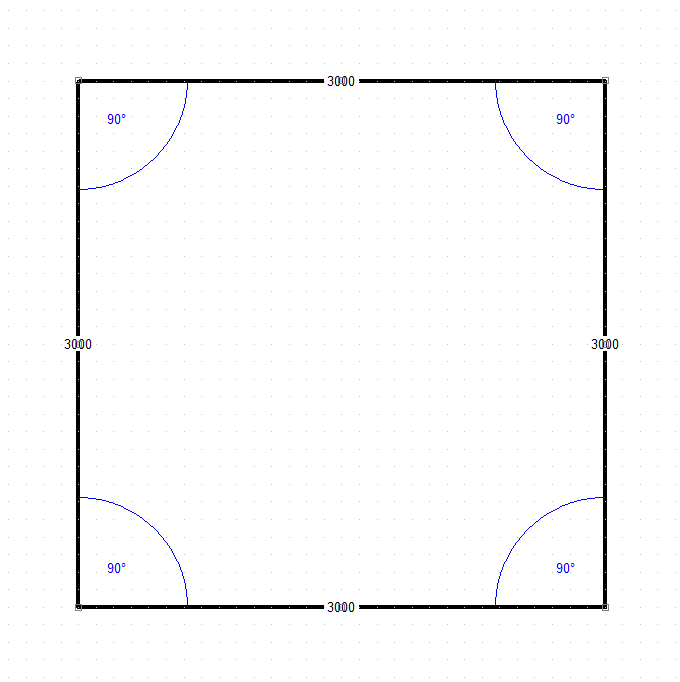
1. Select the Rectangle icon:
 |
Or |
 |
|
Basic or Intermediate mode
|
|
Advanced mode
|
2. Left-click and drag on the sketchpad and left-click again to confirm.
|
Note: To maintain an equal sided square hold Shift. |
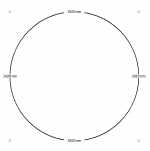
1. Select the Ellipse icon:
 |
Or |
 |
|
Intermediate mode
|
|
Advanced mode
|
2. Left-click and drag on the sketchpad to draw the shape, and then left-click to confirm.
|
Note: To maintain a circle hold Shift. |
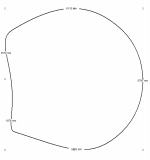
1. In Advanced mode, select the Tools > Draw > Closedcurve:
2. Left-click on the sketchpad to begin and left-click again to plot more points and create a curve.
3. Right-click to automatically close the shape and confirm.
Advanced mode drawing toolbar
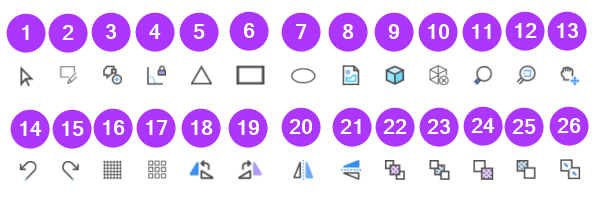
The full drawing toolbar is available in Advanced mode, with a description of what each tool is useful for.
 |
-
Select: Toggle Select mode.
-
Edit Vertices: Toggle Edit mode to manipulate the shape and change the measurements.
-
Add or Remove Vertices: Create or remove corner points.
-
90° Lock: Toggle a lock on the selected angle and drag to keep it at 90°.
-
Polygon: Draw multiple lines in a succession with an end connection. Right-click to finish.
-
Rectangle: Draw a rectangle or square.
-
Ellipse: Draw an ellipse.
-
Image: Import a .jpg file onto the sketchpad.
-
Generate Room: Generate 3D room from sketchpad design.
-
Delete Surfaces: Remove 3D surfaces that have been generated.
-
Zoom: Zoom in or out.
-
Zoom to Fit: Zoom so all components are visible.
-
Pan: Pan canvas.
-
Undo: Undo to the last action.
-
Redo: Redo the previously undone action.
-
Toggle Grid: Show or hide the grid.
-
Snap to Grid: Snap symbols to the grid.
-
Rotate Left: Rotate 90° anti-clockwise.
-
Rotate Right: Rotate 90° clockwise.
-
Flip Vertical: Flip around a vertical centre.
-
Flip Horizontal: Flip around a horizontal centre
-
Front: Bring selected shape to the front layer.
-
Back: Send selected shape to the back layer.
-
Forward: Bring selected shape forward one layer.
-
Backward: Send selected shape backwards one layer.
-
Merge Contours: Merge selected contours together to form replacement contour. How to use contours
|
