In Virtual Words, you can curve walls in two ways in the sketchpad, by curving a corner of a shape or by curving a line.
|
Note: You must be in Edit mode. |
-
Right-click the corner and select Create radius.
- In the Create radius window, enter the desired radius measurement in millimetres and click OK.
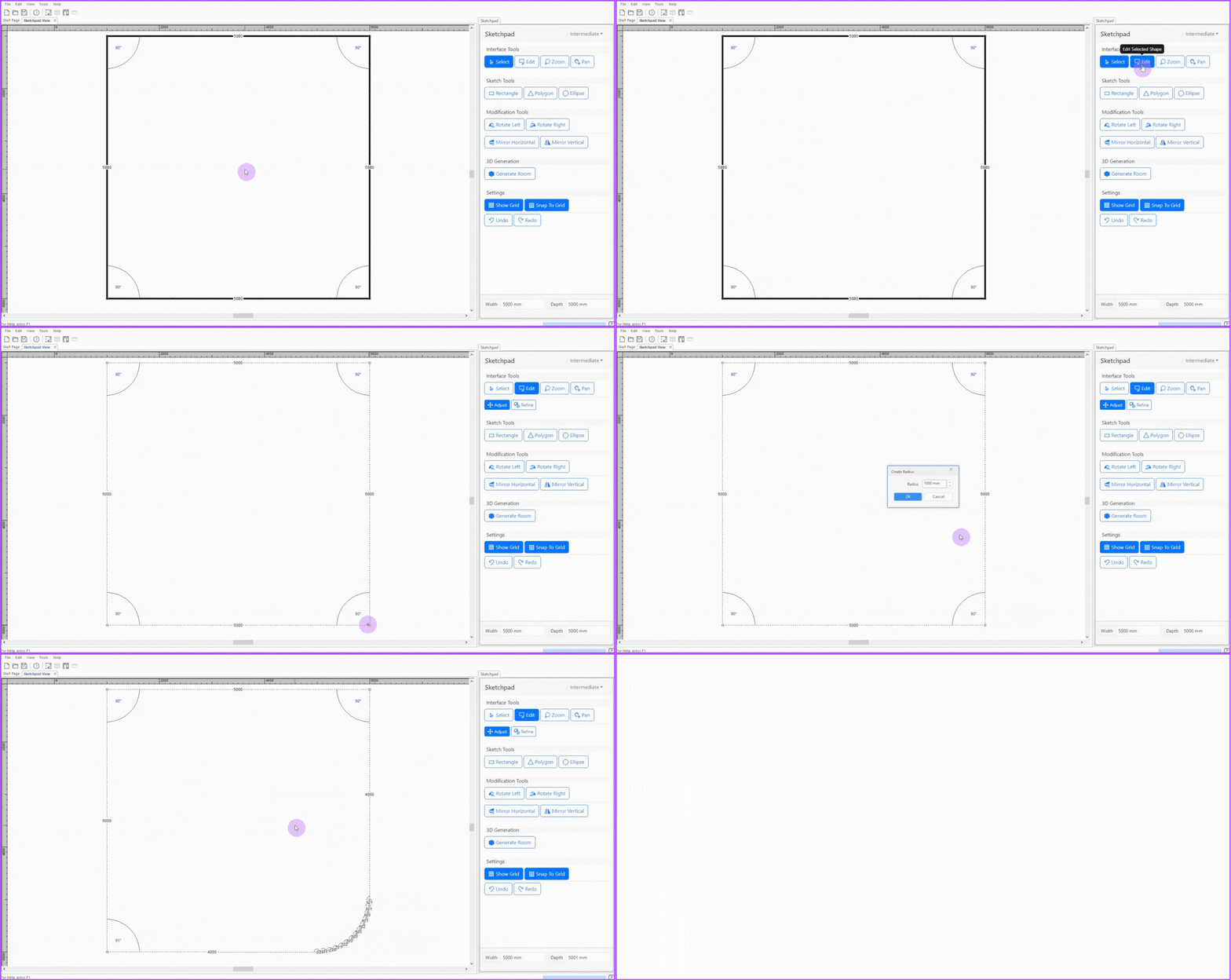
|
Note: The radius is the distance from the beginning of the curve to the end of the curve. Using a larger radius creates a longer curve and a shorter radius creates a shorter curve. |
|
Note! You must be in Edit mode. |
-
Right-click the line and select Convert To Curve.
- Two blue lines will appear with the curved line between them. Left-click and drag the pivot points at the end of each blue line to adjust the curve.
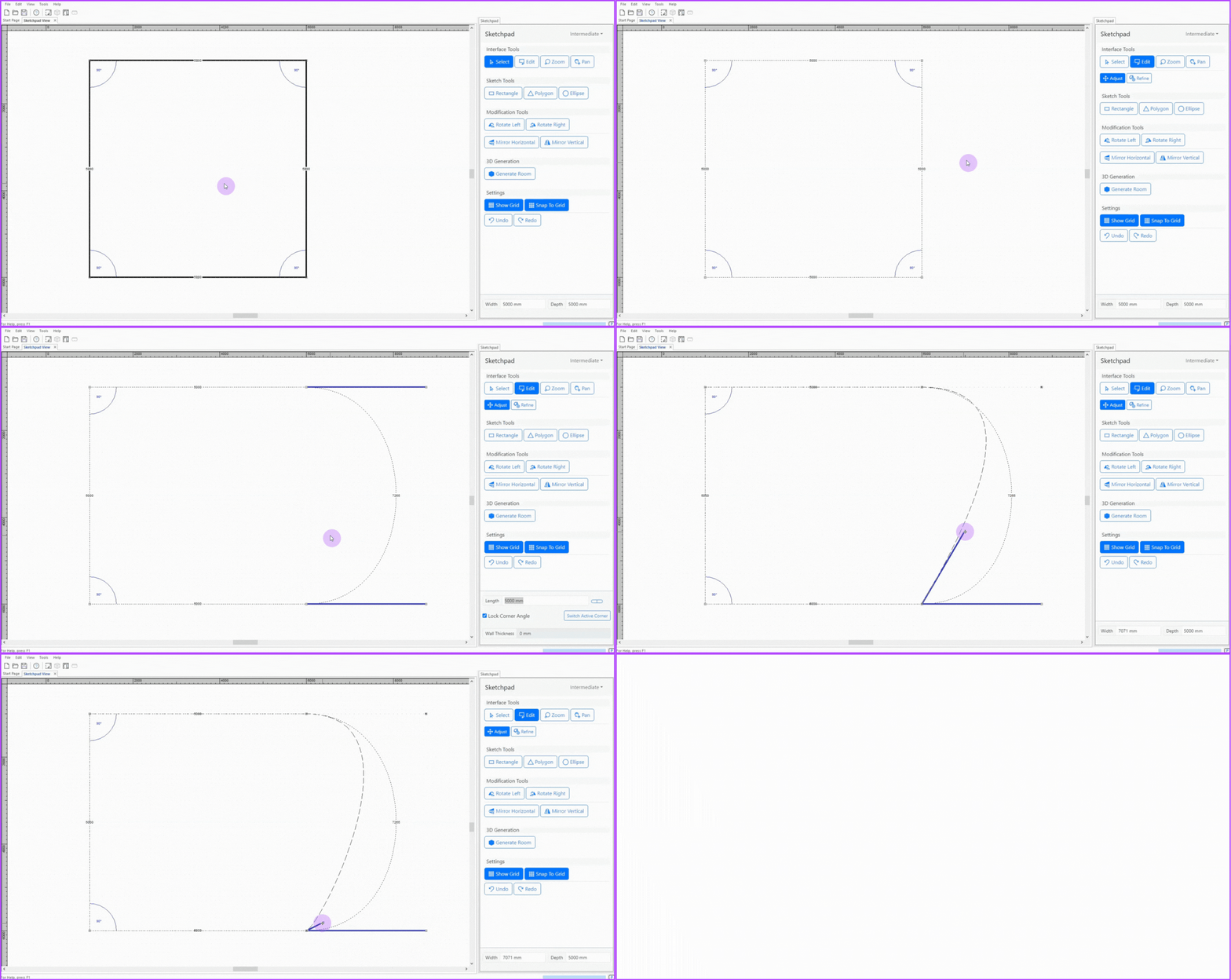
|
Note: The curve can be removed by right-clicking the curved line and selecting Convert To Line, or by clicking the Undo icon. |
